
Drizzle ORM & PostgreSQL
Connect and manage your PostgreSQL database using Drizzle ORM. comprehensive guide to local Docker setup, Neon/Supabase integration, and handling schema migrations.
Vibestacks uses Drizzle ORM with PostgreSQL. Drizzle provides a type-safe, SQL-like query builder that feels natural if you know SQL, while giving you full TypeScript autocomplete and compile-time error checking.
Database Options
For local development, Vibestacks includes a Docker Compose configuration that runs PostgreSQL 17.
docker compose up -dThe default connection string for the local database:
DATABASE_URL="postgresql://postgres:password@localhost:5432/vibestacks_db"Docker required
Make sure Docker Desktop is running before starting the container. See Installation for Docker setup.
The recommended approach for production. Vercel's marketplace integration with Neon automatically provisions your database and configures environment variables.
Add Neon from Vercel Marketplace
- Go to your Vercel project dashboard
- Navigate to Storage → Create Database
- Select Neon Serverless Postgres
- Choose your region (pick one closest to your users)
Configure the Integration
When connecting, you'll see a configuration dialog:
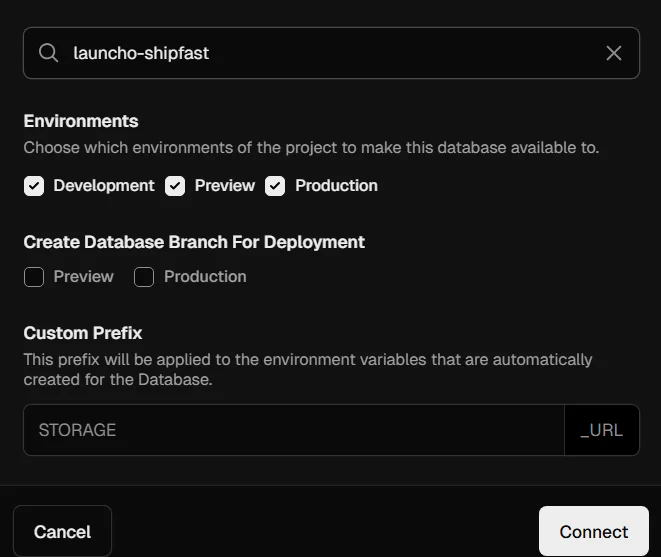
Configure these options:
Environments:
- ✅ Development
- ✅ Preview
- ✅ Production
Create Database Branch For Deployment:
- ✅ Preview (recommended - isolates preview deployments)
- ☐ Production
Custom Prefix:
- Set to
DATABASEso the variable becomesDATABASE_URL
Click Connect when ready.
Verify Environment Variables
After connecting, Vercel automatically adds DATABASE_URL to your project's environment variables. Verify in Settings → Environment Variables.
Preview branches
With "Create Database Branch For Deployment" enabled for Preview, each PR gets its own isolated database branch. This means you can test migrations safely without affecting production data.
Vercel's marketplace also integrates with Supabase if you prefer their platform.
Add Supabase from Vercel Marketplace
- Go to your Vercel project dashboard
- Navigate to Storage → Create Database
- Select Supabase
- Follow the prompts to create or connect a project
Configure the Integration
Environments:
- ✅ Development
- ✅ Preview
- ✅ Production
Custom Prefix:
- Set to
DATABASEso the variable becomesDATABASE_URL
Verify Environment Variables
Check that DATABASE_URL appears in Settings → Environment Variables.
Note
Vibestacks uses Better Auth for authentication, not Supabase Auth. You're only using Supabase as a PostgreSQL host.
If you prefer to configure your database manually without the Vercel marketplace:
Neon:
- Create a free account at neon.tech
- Create a new project
- Copy the connection string from the dashboard
- Add it to your
.env.localand Vercel environment variables:
DATABASE_URL="postgresql://user:password@ep-xxx.region.aws.neon.tech/neondb?sslmode=require"Supabase:
- Create a free account at supabase.com
- Create a new project
- Go to Settings → Database → Connection string
- Copy the URI and add it to your environment:
DATABASE_URL="postgresql://postgres:[password]@db.[ref].supabase.co:5432/postgres"Generous free tiers
Both Neon and Supabase offer generous free tiers that are more than enough to get started. You'll likely be generating revenue well before you need to upgrade to a paid plan.
Project Structure
Here's how the database layer is organized:
| File | Description |
|---|---|
db/index.ts | Database client & connection pool |
db/schema.ts | Barrel file that exports all schemas |
db/auth-schema.ts | Authentication tables (user, session, account, verification) |
drizzle/ | Generated migration files (commit these!) |
drizzle.config.ts | Drizzle Kit configuration |
Connection Setup
The database client is configured in db/index.ts:
import { drizzle } from "drizzle-orm/node-postgres";
import { Pool } from "pg";
import * as schema from "./schema";
import { env } from "@/env";

const pool = new Pool({
  connectionString: env.DATABASE_URL,
});

export const db = drizzle(pool, { schema });
Import db anywhere in your application to run queries:
import { db } from "@/db";
import { user } from "@/db/schema";

const users = await db.select().from(user);
Schema Overview
Vibestacks comes with authentication tables pre-configured for Better Auth. These tables are defined in db/auth-schema.ts.
Included Tables
| Table | Description |
|---|---|
user | User profiles (id, name, email, avatar) |
session | Active user sessions with expiry tracking |
account | OAuth provider connections (Google, GitHub, etc.) |
verification | Email verification and password reset tokens |
Schema Conventions
All tables in Vibestacks follow these conventions:
export const example = pgTable("example", {
  id: text("id").primaryKey(),
  // ... your fields
  createdAt: timestamp("created_at").defaultNow().notNull(),
  updatedAt: timestamp("updated_at")
    .defaultNow()
    .$onUpdate(() => new Date())
    .notNull(),
});id- Text primary key (we usenanoidfor generation)createdAt- Auto-set on insertupdatedAt- Auto-updated on every change- Indexes - Added on foreign keys for query performance
- Cascade deletes - Related records are cleaned up automatically
Development Workflow
During development, use db:push for fast iteration. This syncs your schema directly to the database without generating migration files.
Make Schema Changes
Edit your schema files in the db/ directory. For example, adding a new table:
export * from "./auth-schema";
export * from "./posts-schema"; // Add new schemaimport { pgTable, text, timestamp } from "drizzle-orm/pg-core";
import { user } from "./auth-schema";
export const post = pgTable("post", {
id: text("id").primaryKey(),
title: text("title").notNull(),
content: text("content"),
authorId: text("author_id")
.notNull()
.references(() => user.id, { onDelete: "cascade" }),
createdAt: timestamp("created_at").defaultNow().notNull(),
updatedAt: timestamp("updated_at")
.defaultNow()
.$onUpdate(() => new Date())
.notNull(),
});Push to Database
Apply your changes instantly:
pnpm db:pushDrizzle will show you exactly what changes will be made and ask for confirmation.
Verify in Drizzle Studio
Open the visual database browser to inspect your changes:
pnpm db:studioThis opens local.drizzle.studio where you can browse tables, run queries, and edit data.
Development only
db:push is great for development but not recommended for production. It doesn't create migration files, so changes aren't tracked or reversible. Use the production workflow below for deployed environments.
Production Workflow
For production deployments, use the generate + migrate workflow. This creates version-controlled SQL migration files that can be reviewed, tested, and applied consistently across environments.
Generate Migrations
After finalizing your schema changes, generate a migration file:
pnpm db:generateThis creates timestamped SQL files in the drizzle/ directory:
Review the Migration
Open the generated .sql file and verify the changes look correct. This is your chance to catch issues before they hit production.
Apply Migrations
Run pending migrations against your database:
pnpm db:migrateIn CI/CD, this command should run automatically during deployment.
Recommended Workflow
| Environment | Command | Why |
|---|---|---|
| Local development | pnpm db:push | Fast iteration, no migration files needed |
| Preview/Staging | pnpm db:migrate | Test migrations before production |
| Production | pnpm db:migrate | Controlled, versioned changes |
Commit your migrations
Always commit the drizzle/ directory to version control. These migration files are your database's version history.
Available Commands
| Command | Description |
|---|---|
pnpm db:push | Push schema changes directly (development) |
pnpm db:generate | Generate SQL migration files |
pnpm db:migrate | Run pending migrations |
pnpm db:studio | Open Drizzle Studio GUI |
pnpm db:seed | Populate database with sample data |
Drizzle Studio
Drizzle Studio is a visual database browser that lets you inspect and edit your data without writing queries.
pnpm db:studioThis opens local.drizzle.studio in your browser.
Features:
- Browse all tables and their data
- Run custom SQL queries
- Edit records directly
- View table relationships
Connect to any database
Drizzle Studio uses your DATABASE_URL. To inspect production data, temporarily update the variable (be careful with production data!).
Troubleshooting
Connection refused errors
Make sure your database is running:
# For Docker
docker compose up -d

# Check container status
docker ps
For cloud databases (Neon/Supabase), verify:
- Your IP isn't blocked by firewall rules
- The connection string includes
?sslmode=require - The database hasn't been paused due to inactivity (free tier)
"Relation does not exist" errors
Your schema hasn't been pushed to the database yet:
pnpm db:pushMigration conflicts
If you have conflicts between local changes and existing migrations:
# Reset local database (development only!)
docker compose down -v
docker compose up -d
pnpm db:push
Warning
The -v flag deletes all data. Only use this in development.
Type errors after schema changes
Restart your TypeScript server to pick up new types:
- VS Code/Cursor:
Cmd+Shift+P→ "TypeScript: Restart TS Server" - Or restart your dev server:
pnpm dev
Vercel deployment fails with database errors
- Verify
DATABASE_URLis set in Vercel environment variables - Ensure the variable is available for the correct environments (Production, Preview, Development)
- Check that migrations have been generated and committed:
pnpm db:generate
git add drizzle/
git commit -m "Add database migrations"
Next Steps
- IDE Setup - Configure your editor for the best experience
- Authentication - Learn how Better Auth uses these tables